Showing posts with label teacher_tools. Show all posts

Wednesday, March 2, 2011

Presentation on 21st Century Textbooks

On Wednesday, March 2, Chip Chase and Katey Craver gave a presentation to the annual conference of the DC/MD area independent school bookstore managers focusing on the future of the textbook.

In the presentation, we address the problems of using ebooks as textbooks, and then imagine how textbooks will look in the future, whether we will use enhanced e-textbooks or move away from textbooks altogether and use open educational resources.

To access the presentation and resources, go to:
http://www.ncslibrary.org/textbooks


Friday, January 14, 2011

Notes from the iPads at NCS Open House

On Wednesday, January 12 and Thursday, January 13, the NCS Library held an open house for faculty and staff on the use of iPads at NCS.  The purpose of this open house was to get iPads into the hands of our instructors to show off the potential of these devices.

Below is the brief outline presentation with screenshots of some of the apps that were covered, as well as a link to some of the resources and websites mentioned.

Thanks to everyone who was able to attend!  If you could not attend the session, please schedule a time with Chip Chase and we'd be glad to cover it again during your free time.

iPads at NCS Presentation


Resources and Websites

All of these resources are located on our "iPads at NCS" website.
  • I Education Apps Review - A great resource for learning more about education apps, reviewed by a community of educators from across the country.
  • iPads in Education Ning - This social network of educators focuses on using iPads and Ebooks in schools and colleges.

Thursday, December 16, 2010

iPads at NCS: Teaching Tools on Your Time

Next semester, we are going to resume our Teaching Tools on Your Time training series by focusing on iPads!  In addition, we will conduct a brief faculty/staff survey to solicit feedback about what you would like covered in future trainings.

iPads at NCS


Currently we have two iPads in the library that we hope teachers will consider using in the classroom.  We've decided to kick this iPad training session off with a new portion of our library website devoted solely to iPads at NCS:

http://www.ncslibrary.org/ipad

On these pages we have listed useful apps (make sure to check both the "apps for teachers" and "apps for students" sections!) as well as a description about how the library is hoping to expand the iPad program next year.

We thought we would share these pages with you now in case any of you receive an iPad over the holidays.  Make sure to check out this site to get our app recommendations and begin to brainstorm ways you might use your new iPad in the classroom!

"App"-solutely Fabulous


If you follow our NCS Library Blog, you may have noticed that we have a new series of posts where we list our favorite must-have apps.  Make sure to check our blog periodically to see our new recommendations.  Here are our first two "App"-solutely Fabulous posts:


Schedule a Training


To set up a time for training, email Chip Chase and list your available times. We are still training users on Glogster, Voicethread, Google Earth, and Jing, so if you'd like to learn how to use those resources, let us know.  We are also still offering our hands-on service if you would like our help to implement a tech tool you just don't have the time for.

Previous Posts


Tuesday, December 14, 2010

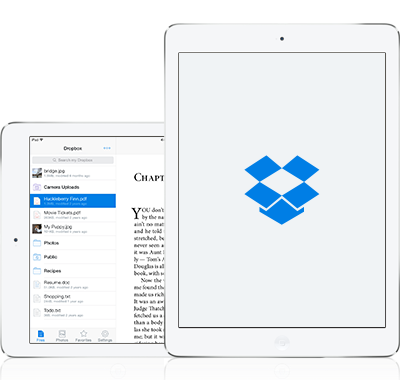
Dropbox : "App"-solutely Fabulous!

Apps are changing the nature of how we interact with technology. In this blog series, we will highlight some great apps that are guaranteed to make your life a little easier. Consider downloading these apps onto your personal smart phone or tablet device, or come to see them in action in the MS/US library.


About Dropbox


Here in the library, we love Dropbox! And more and more, everyone with an iPad loves Dropbox too.

Dropbox is an ideal cloud-based solution for transfering files from one computer to another. Forget your USB drive, just create a Dropbox account and upload your files online.  Even better than other cloud-based file-syncing sites, install Dropbox on your computer in order to easily drag and drop to a folder in order to sync your files.

Every time you change a file in dropbox, your file syncs online.  So any computer that you have installed Dropbox will automatically refresh the file.

The Dropbox App


With the free Dropbox app, you can easily access all your files, and even more, you can use Dropbox to open your files in one of a variety of word-processing apps on the iPad.  This means that you can create a file on your computer, save it to Dropbox, and then continue working on it in Dropbox.

Dropbox is an app-solutely essential app!

Friday, December 3, 2010

Mobile Mouse : "App"-solutely Fabulous!

Apps are changing the nature of how we interact with technology. In this blog series, we will highlight some great apps that are guaranteed to make your life a little easier. Consider downloading these apps onto your personal smart phone or tablet device, or come to see them in action in the MS/US library.


Mobile Mouse

For our first App of the Month, we are highlighting Mobile Mouse.  This simple, but robust app can really change how you use your Smarboard in the classroom.

Mobile Mouse allows you to turn your smart phone or iPad into a virtual mouse for another computer.  This is ideal for when you want to interact with your computer on the Smartboard, without being stuck to the front of the room, or to your desk.

With this app there's no more "Sage on the Stage;" you're free to walk about the classroom, while still using your projector to display important information.


Remember, the Tech department does have wireless keyboards to be used with Smartboard as well. This is another option if you don't have a personal iPad or iPhone.

Tuesday, November 30, 2010

Teaching Tools on Your Time - Hands-on Service


We're doing something different with our training series for the rest of the semester. Instead of offering a specific training, the NCS librarians are offering our hands-on service!

Have you wanted to use new technology in your classroom or on Moodle, but haven't had the time?

Just ask a librarian! We're here to help you do any of the technology tasks you don't have the time for.

Let us help you:
  • research specific technologies specific to your curriculum
  • upload documents to Moodle
  • find video or images for a PowerPoint presentation 
  • post slideshows online
  • download youtube videos and edit them into new sequences
  • try to do anything else you can think of!

Schedule a Training


To set up a time for training, email Chip Chase and list your available times. We are still training users on Glogster, Voicethread, Google Earth, and Jing, so if you'd like to learn how to use those resources, let us know.

Previous Posts

Monday, November 1, 2010

Jing for Screencapturing - The New Training for "Teaching Tools on Your Time"


As part of the NCS Library’s "Teaching Tools on Your Time" series, we are hosting a new Alternative Presentation Tools training session on Jing, an easy-to-use screen-capturing tool.

How Can Jing Be Used in the Classroom


Make your presentations pop by adding screenshots to enhance understanding of complicated processes or software instructions.  Screenshots are perfect for visual learners who need to see something to understand how it works.


Jing allows you to easily capture images or video.  When capturing images, you can easily annotate your images with arrows and text boxes and highlights.  Create an annotated screenshot in seconds!

Schedule a Training


To set up a time for training, email Chip Chase and list your available times. We are still training users on Glogster, Voicethread and Google Earth, so if you'd like to learn how to use those resources, let us know.

Also, if there is a specific technology tool that you would like to implement in your classroom, but not covered in our Teaching Tools on Your Time website, please let us know and we'd be glad to help provide training for you or your students.

Previous Posts

Tuesday, October 12, 2010

Google Earth - The New Training for "Teaching Tools on Your Time"


As part of the NCS Library’s "Teaching Tools on Your Time" series, we are hosting a new Alternative Presentation Tools training session on one of the hottest new sites in education: Google Earth.

How Can You Use Google Earth as a Presentation

Google Earth, as well as Google Maps online, are robust programs that can be used for a variety of purposes.  The downloadable Google Earth program is particularly good at creating detailed visual-based presentations that incorporate satellite data and 3D modeling.  

Presentations with Google Earth can be cross-discipline.  Create a "Lit Trip" based on a novel, allowing you to zoom in and out on various paths protagonists take through the story.  Calculate surface areas of famous landmarks across the world for a unique math project.  Annotate Placemarks on a map with images and video to create a detailed interactive final project for a research assignment.


Schedule a Training

To set up a time for training, email Chip Chase and list your available times.

We are still training users on Voicethread and Glogster, so if you'd like to learn how to use those websites, let us know.

Also, if there is a specific technology tool that you would like to implement in your classroom, but not covered in our Teaching Tools on Your Time website, please let us know and we'd be glad to help provide training for you or your students.

Previous Posts

Monday, September 20, 2010

Voicethread - The New Training for "Teaching Tools on Your Time"


As part of the NCS Library’s "Teaching Tools on Your Time" series, we are hosting a new Alternative Presentation Tools training session on one of the hottest new sites in education:  Voicethread.


What is Voicethread?


Voicethread is a unique collaborative presentation application, kind of like a PowerPoint that encourages users to comment upon each slide.  Instead of "slides," however, you can add multiple kinds of content, including videos, images, text documents and more.

It may be hard to think of how you might use this service in the classroom at first, but many educators are using Voicethread to great effect.
  • Create a collaborative study guide, with audio comments to lead a discussion
  • Have students use a private Voicethread to collaborate on a project from different locations.  Each student can comment upon one particular slide, all as part of a group project.
  • Narrate your PowerPoint lessons, encouraging students to comment upon ideas or topics raised.

Each time a user comments on a Voicethread, their comment is added to the end of a playlist.  This way you can "watch" a voicethread in a way similar to a Youtube video.  It's incredibly easy to create a Voicetherad, and even easier to comment upon a previously-created Voicethread.

Schedule a Training


To set up a time for training, email Chip Chase and list your available times.

We are still training users on Glogster, so if you'd like to learn how to use that website, let us know.

Also, if there is a specific technology tool that you would like to implement in your classroom, but not covered in our Teaching Tools on Your Time website, please let us know and we'd be glad to help provide training for you or your students.

Previous Posts


Monday, August 30, 2010

Announcing Library Training Series: "Teaching Tools on Your Time"

The NCS Upper School Library is expanding our Digital Literacy initiative with a new year-long faculty/staff training series: "Teaching Tools on Your Time."

About the Training Series


Each quarter, we will focus on different types of web tools, such as alternative presentation tools, widgets to enhance your Moodle page, organization tools, and more.  Every few weeks we will highlight and provide training for what we consider the best web tools currently available.  Trainings will be held in the Upper School Library's Multimedia lab and scheduled at the faculty's convenience.

To learn more about the training series, go to the "About the Trainings" section on the NCS Library Website.

Our Inspiration


The constant and easy availability of information on the Internet has changed the way we experience the world.  These changes are also affecting education.  Our Internet-saturated students have new expectations of education and technology.

Watch the video below for a great example of a 21st Century student who has, with the help of her teachers, empowered her own learning through free tools available online.


Alternative Presentation Tools 


For the First Quarter (September 2010 - October 2010), we will focus on Alternative Presentation Tools.  While PowerPoint is a standard technology that often gets the job done, there are a slew of new sites online that can easily and effectively engage your students in the classroom.


Break the mold and consider using something other than Power Point!  Either implement these tools yourself, or have students turn in assignments using these tools. 

First Alternative Presentation Tutorial: Glogster


The first Alternative Presentation tool we will focus on is Glogster EDU, an interactive web-based tool that permits users to create an online poster.  On this poster, you can add various elements such as sound, video, animated graphics, and web links, that are not possible when designing a conventional poster.

Glogster also allows users to become more creative because of the site's multi-dimensional interface. Glogster is a green technology, and you can even embed finished "glogs" in your Moodle account or elsewhere.  Here's an example of one of the library's glogs: 


Schedule a Training

To set up a time for training, email Chip Chase and list your available times.

Also, if there is a specific technology tool that you would like to implement in your classroom, but not covered in our Teaching Tools on Your Time website, please let us know and we'd be glad to help provide training for you or your students.

Wednesday, August 18, 2010

What's New in the Library Multimedia Lab?

We have purchased a variety of new equipment to start off the new school year.

Remember, students and faculty can check out camera and other multimedia equipment from the library on a nightly basis for use on school projects.

Take a look at some of our new equipment:

2 Flip HD Slide Camcorders


These camcorders are ideal for capturing quick video. Borrow one from the library to easily film classroom projects and events. Mr. Chase will be glad to help you upload your video to Youtube and embed the clip on your Moodle account.


2 Vixia HD Camcorders


These camcorders capture high quality HD  video, ideal for longer video projects. These camcorders also record to a built-in flash card instead of Mini-DV tapes, so you don't have to worry about accidentally recording over important video! Mr. Chase will be glad to train you on the use of the camcorders.

2 Panasonic Lumix Cameras


These point and shoot cameras come with built-in GPS tracking. These cameras are ideal for field trips where you can capture the exact location of where you took the image. These cameras will be ideal if you want to create Google Map field-trip report.

(For more information, check out our new Teacher Tools in Your Time: Alternative Presentation Tools web page.)


1 Apple Trackpad


Take a look at this Apple trackpad in the library to see what all the fuss is about. The trackpad brings the Mac laptop's gesture-based trackpad functionality to the Apple desktop.


2 RCA Digital Audio Recorders


These audio recorders make it easy to quickly record audio.  The built-in USB port makes it easy to transfer the audio files to your computer.


1 Display Screen


This screen will be used in the Multimedia lab for faculty/staff trainings, as well as for student instruction.

Wednesday, May 26, 2010

Faculty Training: What's on the Horizon? New Technology and NCS

This blog post contains notes and resources for the Thursday May 27, 2010 faculty training session about the future of technology and implications for NCS.

Based on the yearly Horizon Report, this training session is meant to give an overall view of where the educational technology field is heading.  We hope that this training session and blog post will give faculty members some new ideas on ways to use technology in the classroom, in addition to a general understanding of ways the educational field might be changing in the upcoming years. 


Powerpoint Presentation

About the Horizon Report
The Horizon Report is created every year by the New Media Consortium.  There are two versions of the report, one global report that is intended more for the University setting, and one specifically created for K-12 institutions.  We have included information about both reports in order to get a greater understanding of upcoming technologies.  The reports organize key technologies according to dates of theoretical "horizons," from 1 to 2 years, 3-4 years, and 4-5 years.
The Horizons

Global Edition K-12 Edition
Near Horizon (1 Year or less)Near Horizon (1 Year or less)
Mobile ComputingCollaborative Environments
Open Content

Cloud Computing

Second Adoption Horizon (2-3 Years)Second Adoption Horizon (2-3 Years)
Electronic BooksGame-based Learning
Simple Augmented reality

Mobile Computing

Far-Term Horizon (4-5 Years)Far-Term Horizon (4-5 Years)
Gesture-Based ComputingSimple Augmented Reality
Visual Data AnalysisFlexible Displays

The Near Horizon (1 Year or Less)

Mobile Computing — Integrated devices, such as Kindles, Blackberries, iPhones, and iPads allow constant access to course material. 
  • Poll Everywhere — This service allows you to create online polls that can be answered via text messaging or through the web.  It allows for easy, instant polling.
  • PodTrip — Download free museum tours directly onto your mobile listening device, such as an iPod.  A variety of tourist and educational podcasts are available for free online, and would be great for field trips, or for class projects.
  • Evernote —This is one of my favorite services.  It is a web-based note-taking system has a variety of mobile features.  You can quickly take photo, audio, or text-based notes directly from the Evernote Smart-phone app.  These notes are automatically saved to your personal Evernote profile. 
  • Mobile Apps for Education — Various smartphone apps are available for education and are worth a look.
Open Content — Free content available over the Internet can be re-purposed in the classroom.  As more and more free content becomes available, services such as FlatWorld Knowledge enable teachers to create their own digital textbooks from open content. 
  • Academic Commons — Great place to search for open educational resources
  • Folksemantic — Great place to search for open educational resources
  • FlatWorld Knowledge — This web-based digital textbook service allows you to create textbooks compiled of sources of your own choosing, specific to your class.  
  • CK12 Flexbook — Another web-based digital textbook service designed for the K-12 school, with a focus on sharing created textbooks with the community.
  • Youtube EDU — A great compilation of free video resources.
  • Teacher Tube —Another great compilation of free video resources.
  • Flickr — A great resource for photos and even some video.  This service also allows you to search material with Creative Commons licenses. 
  • Shmoop — An online community created by educators for educators with great classroom resources
  • Connexions — Another online community where you can view and share educational material.  Designed to be used by both students and teachers.
K-12: Collaborative Environments — Online spaces that allow for collaboration and group-work, and advances in video-conferencing technology allows for classrooms to expand beyond the physical boundary of the school building.
  • Moodle, of course! — Moodle is NCS's collaborative space. The students are all familiar with using Moodle, so the more you integrate it into your teaching practices, the easier it will be for students to access. 
  • Video Conferencing — Skype is an ideal way to host quick video conferences.  Invite guest lecturers to easily chat with your classroom online. 
  • Wikis — You can create a version of a wiki with Moodle, but there are also external sites on the internet that allow you to easily setup a wiki.  Wikispaces is a service that lets you easily setup wikis for free; they also give away free accounts to educators.
  • Google Apps — Google services such as Gmail, and Google Docs are easy ways to collaboratively work on documents from text documents to slide shows.  Google Wave has also recently come out of beta, and many teachers are already using the service in their classroom. 
  • Blogs — Consider creating your own class blog, allowing students to post articles about their research.
  • For more about social media and schools, watch this video by a technology leader from the New Hampton School in New Hampshire.  It's a great example of how online tools make collaboration easy, and ultimately, essential in the classroom!
K-12:  Cloud Computing — Cloud computing refers not to a specific application, but a way of implementing technology at an institutional level.  It refers to using the processing power of multiple computers to run apps, and can ideally save an institution lots of money.  There are also a variety of free resources, open content, and online communities that are only available because of cloud computing.
  • Dropbox — This is another one of my favorite Internet services.  Dropbox allows you to create a free file storage space on the web.  Instead of just accessing files online, however, you can create a special folder on your desktop so you can drag and drop files easily and everything will sync on the web. For more information, read our post: File Sharing Services for Larger Documents.
  • Flickr, TeacherTube and Youtube EDU are also examples of services available because of the cloud.
  • Many collaborative environments, such as Google Apps like Wave and Gmail are only possible because of cloud computing.

The Second Horizon (2-3 Years)

Electronic Books — Electronic books will eventually make textbooks obsolete.  They make it convenient to access books in one device, so no more lugging around heavy backpacks.  At this point, however, ereaders and the business model for digital content are focusing primarily on personal-use devices.  Also, ebook readers currently lack the types of tools needed for research.

Ideally, an ebook reader should have:
  • Copy and Paste functionality
  • Personal and collaborative note-taking and highlighting
  • Search
  • Text-manipulation 
  • Potential for audio/video streaming and hyperlinks.

Simple Augmented Reality — The prevalence of cameras and microphones in mobile devices and laptops has allowed the once expensive and more theoretical realm of augmented reality much easier to implement.  Using the camera and screen of a mobile device or computer, you can add layers of information that can be triggered by markers, or through GPS information. 
  • Augmented Reality Phone Apps — The Museum of London App allows you to view historical information about London as you walk through the city.  Here is another example of an augmented museum app.  
  • Augmented Reality Tagging — New apps, such as TagWhat and Layar for smartphones are allowing users to create GPS-based tags to their environment.  These tags could than be shared with other users who then walk by the same spot.
  • Augmented Reality Pop-up books — Zooburst allows users to create their own pop up books that can be viewed in augmented reality.  Simply print out an augmented reality tag, and hold it up to your webcam when prompted and the pop up book comes to life on your screen!
  • Augmented Reality Games — MIT came up with an augmented reality project designed for Middle School students that combines mobile technology with game-based learning.  Another project shows an augmented reality zombie shooter game.  (This latter example may not have practical application in the K-12 classroom, but it can get you thinking of what's possible.)

K-12: Game-Based Learning — Since gaming has been so successful in military and industrial training, more and more teachers are eager to implement game-based learning in the K-12 classroom.  These games range from simple paper and pencil word searches, to Massive Multiplayer Online (MMO) games, and even in the future, the type of augmented reality games mentioned previously.

K-12: Mobile Computing — Why do you think mobile computing is only on the second adoption horizon for k-12 schools rather than on the near horizon as it is on the Global report for universities?


The Far-Term Horizon (4-5 Years)

Gesture-Based Computing — Gesture-based computing allows us interaction with computers beyond just a keyboard and mouse.  Think of the Wii, or the iPad, but even without a device, just your hands.  This type of interaction with the computer will allow for a variety of simulated reality applications, and a more intuitive way to interact.

Visual Analysis — New software are being developed to mashup multiple data sets and view the results in visual formats.  By interacting with data in this visual way, users can access and interpret findings much quicker than ever.  This has the potential to open up new forms of scholarship, particularly at the university level.  There are many online sources that allow for access to and creation of visualizations.
  • Many Eyes — A website that allows users to share online visualizations
  • Wordle — Allows users to analyze a document or website and then come up with a visual representation of the most used words.
  • New Political Interfaces — This mashup allows you to view trending topics tweeted by politicians.
  • Gapminder — A great resource to analyze statistical information.
K-12: Simple Augmented Reality — Why do you think simple augmented reality is only on the far-term adoption horizon for k-12 schools rather than on the second term horizon as it is on the Global report for universities?

K-12: Flexible Displays — As technology advances, it is becoming easier and cheaper to create visual displays that are flexible and thin.  These display screens have the potential to be attached to other surfaces, such as textbooks,  lab equipment, or personal school assignment books.

Results from Our Online Polls
During the training, we used Poll Everywhere to conduct a real-time poll tracking what technologies on the horizon report faculty and staff were most interested in, as well as what technologies could be easiest implemented in the classroom.  Here are the results:


Thursday, May 20, 2010

Website of the Month: Readability

The Library’s web site of the month is READABILITY
http://lab.arc90.com/experiments/readability/

Brought to you by Kathy Menz and Chip Chase who learned about it at the Computers in Libraries Conference, this site is guaranteed to remove the clutter that you have to wade through when trying to read an article. It’s simplicity will please you too. Here’s all you have to do.
  1. Click on the site
  2. Select the style, size and margin of the print that you wish to read.
  3. Right click on the READABILITY badge and drag it to your favorites.
  4. When visiting a busy web site that’s cluttered with adds and assorted bells and whistles, simply click on your booklet (bookmark) and voila! all of it disappears.

Trust me, you’ll  love the results. It’s great for showing students via a smartboard, etc. just what you want them to read

Love from you librarians

Monday, February 1, 2010

Tips in a Minute: Word 2007 Documents From NCS Email

Having trouble downloading Word 2007 documents using the NCS e-mail system? Watch the latest Tip in A Minute to learn how!


Friday, October 23, 2009

Tips in a Minute: Moodle for Teachers — Organizing by Adding Text

This video shows how faculty members can organize Moodle by adding text fields and summaries directly to their Moodle class pages. The video also shows how to embed Youtube videos in Summaries and Web Page Resources.


Thursday, October 1, 2009

Tips in a Minute: Moodle for Teachers — Adding Documents

In this video, teachers can learn how to add and arrange documents on their Moodle class.

Friday, May 1, 2009

The Quest for the Best - Guide to the Internet

Do you want to become an Internet power-user?

Then take a look at this list of recommended web sites and services, and learn about the hottest Web sites:

The Quest for the Best

Web site of the Week—New Yorker Fiction Podcast

Are you having trouble finding the time to read for pleasure? Well why not try the next best thing, with fiction podcasts! It's easy to subscribe to a podcast using iTunes services and upload them to an iPod. Or, you can download audio files and burn them to a CD to listen in the car.

We highly recommend the New Yorker Fiction podcast. In this free podcast, famous authors read their favorite stories from the back catalog of the New Yorker magazine. Afterwards, they discuss the significance of these stories with the New Yorker's fiction editor.
Listen to Joyce Carol Oates read Eudora Welty’s “Where Is the Voice Coming From?” or Mary Gaitskill read Vladimir Nabokov’s “Symbols and Signs.”
These short stories and discussions are the perfect length for a commute!
This podcast includes NPR book reviews, news and author interviews -- for people who love to read.
For other podcasts, check out these podcast repositories online.
  • Librivox —This collection focuses on books from the public domain, including many classics. Many of these podcasts are user-created, so the quality may vary.
  • Audible — If you are looking for contemporary authors, nad are not worried about paying for your content, this is the place to go.

http://www.newyorker.com/online/podcasts/fiction
http://www.npr.org/rss/podcast/podcast_detail.php?siteId=89697155
http://librivox.org/
http://www.audible.com/

Friday, April 24, 2009

Web site of the Week—Youtube EDU and Youtube LOC

This week we are covering another great source of scholarly collegiate-level lectures. Youtube EDU is a repository of all Youtube accounts associated with Colleges and Universities.

Click on Directory to see a list of all participating institutions.

Here's a sample video on "Bringing Education into the 21st Century" from the University of California's Channel.


Great for:
  • Video Resources
  • Professional Development
Library of Congress Youtube Channel

While you are on Youtube, make sure to check out the Library of Congress's channel to access classic video footage from their digital library, as well as coverage of LOC-sponsored author events and other intersting videos.

Here's a clip from their Journey's and Crossings Playlist: "Rosie the Riveter: Real Women Workers in World War II":


http://www.youtube.com/edu
http://www.youtube.com/user/LibraryOfCongress

Friday, April 17, 2009

Web site of the Week—Frontline


Many of you might be familiar with the PBS documentary program Frontline, but did you know that you can watch full episodes online, download transcripts, take part in discussions, and access additional materials pertaining to episodes, on Frontline's web site?

Also make sure to check out the Frontline Teacher Center to search videos by subject, and access teaching guides on specific episodes.

For those of you more technology-minded, make sure to check out Frontline's Digital Nationa, a fascinating look at the way we live now. As Frontline's web site describes this program:
Digital Nation a multiplatform project that includes this interactive Web site and a one-hour FRONTLINE documentary to air Winter 2010. The project aims to capture life on the digital frontier and explore how the Web and digital media are changing the way we think, work, learn and interact.
Some sample broadcasts include:

Inside the Meltdown
A fascinating exploration of the causes of the financial meltdown. Watch the full episode, view interviews, access an online timeline, and read what others have to say in the Discussion page.


The Old Man and the Storm
From Frontline's description of the episode "In The Old Man and the Storm, FRONTLINE correspondent and filmmaker June Cross journeys with the Gettridge family of New Orleans for 18 months as they endure devastation, political turmoil and a painstakingly slow bureaucratic process to rebuild their homes and their lives." The site Includes updates on the Gettridge clan, official's views of the recovery process, and a timeline of the recovery process.

Related Posts Plugin for WordPress, Blogger...